Manual toggle camera switches offer an alternative control method, bypassing standard touchscreen interactions for enhanced accessibility and customized operation.
These switches, paired with Android’s Switch Access, enable users to navigate camera functions using external hardware, providing a unique photographic experience.
What is a Manual Toggle Camera Switch?
A manual toggle camera switch is a physical input device – a button or switch – used to control camera functions on an Android smartphone or tablet. Unlike touchscreen controls, it provides a tactile and often more precise method for initiating actions like taking a photo, switching cameras, or adjusting settings.
Essentially, it’s an external hardware component that interacts with the device’s software, typically through Android’s built-in Switch Access feature. This feature allows users to control their device using external switches, making it invaluable for individuals with motor impairments or those seeking a more customized shooting experience.
These switches can range from simple momentary buttons to more complex toggle switches, offering varying levels of control. They bridge the gap between physical interaction and digital functionality, offering a robust alternative to traditional touch-based methods.
Why Use a Manual Toggle Camera Switch?
Employing a manual toggle camera switch offers several advantages, particularly for users with limited dexterity or those desiring enhanced control. It provides an accessible alternative to touchscreen-based camera operation, circumventing the need for precise finger movements.
For individuals utilizing Android’s Switch Access, these switches unlock independent camera control, fostering greater autonomy and creative freedom. Beyond accessibility, manual switches can improve shooting stability, reducing camera shake during photo capture.
Furthermore, they enable customized workflows, allowing users to map specific switch actions to desired camera functions. This level of personalization is invaluable for photographers seeking a tailored shooting experience. The switch offers a tactile feedback, confirming actions, and can be integrated with automation tools like Tasker for complex sequences.
Android Camera Switch Functionality
Android’s Switch Access feature is crucial for utilizing external toggle switches with camera applications, enabling hands-free control and accessibility options.
Enabling Switch Access on Android
To begin utilizing a manual toggle camera switch, Switch Access must first be enabled within your Android device’s settings. Navigate to your phone’s Settings menu, then Accessibility, and locate Switch Access. Activate the feature by toggling the switch to the ‘on’ position.
Upon activation, a floating control panel will appear on your screen, allowing you to manage switch connections and scanning settings. You’ll need to configure Switch Access to recognize your external toggle switch as an input device. This typically involves selecting the type of switch you’re using and assigning it to a specific action, such as ‘select’ or ‘next.’
Ensure that the ‘Scan settings’ are appropriately adjusted to provide a comfortable scanning speed for camera control. Proper configuration is vital for seamless camera operation via the toggle switch.
Camera Switching via Switch Access
Once Switch Access is enabled and your toggle switch is connected, you can configure it to control camera switching within compatible Android applications. Within the Switch Access settings, assign a specific switch action – often ‘select’ or a custom gesture – to mimic the action of tapping the camera switch icon within the camera app.
This requires careful mapping of the switch input to the on-screen control. The system will scan through available options, and when the scan highlights the camera switch icon, activating the toggle switch will effectively ‘tap’ it, changing between the front and rear cameras.
Experiment with scan speed and switch timing to achieve reliable and responsive camera switching. Consistent practice will refine your control and streamline the process.
Mimic Gesture Assignment for Camera Control
Android’s Switch Access allows for sophisticated control beyond simple taps, including mimicking gestures. For camera control, this means assigning switch actions to replicate swipes or long-presses often used for features like zoom or focus. To achieve this, navigate to the ‘Mimic gesture assignment’ section within Switch Access settings.
You can define actions for single switches or combine multiple switches for more complex commands. For example, a single switch press could initiate a scan highlighting zoom controls, while a second switch press executes the ‘zoom in’ gesture;
Careful configuration is key; map switch actions to the specific gestures supported by your chosen camera application for optimal functionality. This unlocks a level of control beyond basic camera switching.
Open Camera App and Manual Control
Open Camera, a free Android application, provides extensive manual controls, making it ideal for use with a manual toggle camera switch setup.
Open Camera App: A Free Android Option
Open Camera distinguishes itself as a powerful, completely free Android camera application, offering a compelling alternative to pre-installed camera apps. Its open-source nature fosters continuous development and a wealth of features, particularly beneficial when paired with a manual toggle camera switch.
Unlike many stock camera applications, Open Camera grants users granular control over various settings, including exposure, ISO, white balance, and focus. This level of manual adjustment is crucial for photographers seeking precise control, especially when relying on switch-based operation. The app’s interface is customizable, allowing users to tailor the layout to their preferences and streamline the switching process.
Furthermore, Open Camera supports various resolutions and aspect ratios, catering to diverse photographic needs. Its compatibility with external microphones enhances video recording capabilities. The app’s ability to capture images in RAW format provides greater flexibility during post-processing, making it a versatile tool for both casual and professional photographers utilizing manual toggle camera switches.
Switching Cameras within Open Camera
Open Camera simplifies front and rear camera switching, a vital function when utilizing a manual toggle camera switch for accessibility or specialized control. The app presents a readily accessible icon, typically located within the viewfinder interface, allowing for instant toggling between cameras.
When integrated with Android’s Switch Access, this camera switching function can be mapped to a dedicated switch input. This enables users to seamlessly alternate between perspectives without relying on touchscreen gestures. Configuring Switch Access to recognize the camera switch icon is straightforward, enhancing usability for individuals with motor impairments.
The responsiveness of this switch-controlled camera selection within Open Camera is notably efficient, ensuring a fluid shooting experience. Users can quickly adapt to different shooting scenarios, whether capturing selfies or documenting their surroundings, all managed through their manual toggle camera switch setup. This feature significantly expands the app’s accessibility and control options.
Manual Mode Advantages for Camera Control
Employing manual mode within an application like Open Camera, when paired with a manual toggle camera switch, unlocks a level of photographic control often unavailable in automatic settings. This is particularly beneficial for users seeking precise adjustments to ISO, shutter speed, and white balance, tailoring images to specific conditions.
A manual toggle switch allows for deliberate and repeatable adjustments, circumventing the limitations of touchscreen precision. This is crucial for consistent results and creative experimentation. Users can fine-tune settings without accidental alterations, enhancing the shooting process.
Furthermore, manual control empowers photographers to overcome the shortcomings of automatic modes in challenging lighting scenarios. By utilizing a switch for precise adjustments, photographers can achieve optimal exposure and image quality, maximizing the potential of their Android device’s camera.
Hardware-Based Toggle Switches
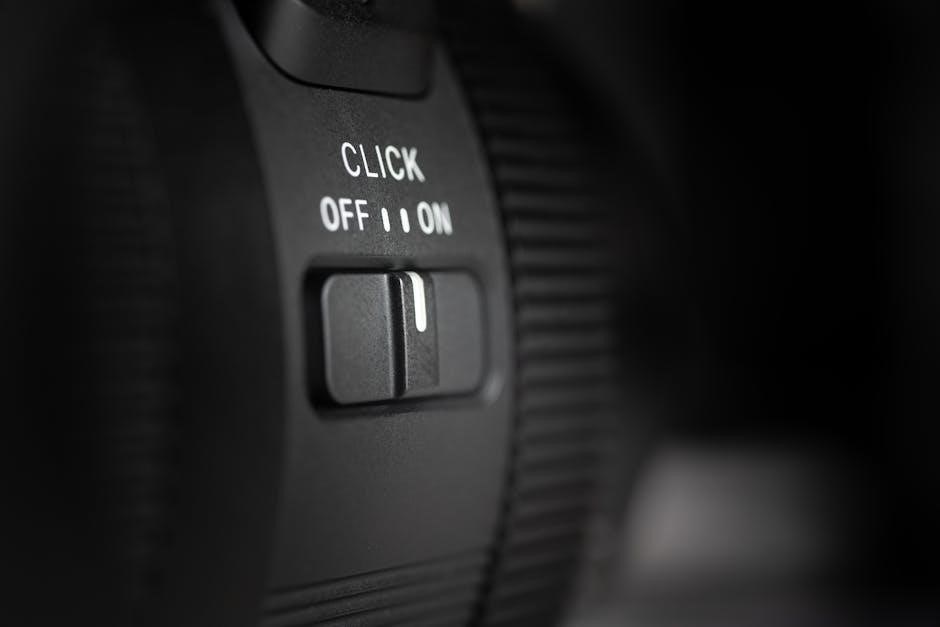
Hardware toggle switches provide a physical interface for controlling Android camera functions, offering a tactile alternative to touchscreen controls.
These switches connect to devices, enabling users to trigger actions within camera applications.
Types of Hardware Toggle Switches
Several hardware toggle switch types can be utilized for Android camera control, each offering distinct advantages. Momentary switches require continuous pressure to activate a function, ideal for short bursts like taking a photo. Conversely, latching switches maintain their state until toggled again, suitable for continuously active features.
USB-compatible switches connect directly to Android devices, simplifying setup and eliminating the need for adapters; Bluetooth switches offer wireless connectivity, providing greater flexibility and portability. Furthermore, single-pole, single-throw (SPST) switches are basic on/off controls, while single-pole, double-throw (SPDT) switches allow for selecting between two functions. The choice depends on the desired functionality and user preferences, impacting the overall camera control experience.
Connecting a Hardware Switch to Android
Connecting a hardware toggle switch to your Android device typically involves utilizing the Switch Access feature. For USB switches, a simple plug-and-play connection often suffices, though compatibility may vary. Bluetooth switches require pairing through the Android settings menu, similar to connecting headphones.
Once connected, configure Switch Access to recognize the switch’s input. Within Switch Access settings, assign the switch to specific camera functions – such as ‘take photo’ or ‘switch camera’. Ensure the switch is properly mapped to avoid unintended actions. Some switches may require adapter cables depending on the port type. Thorough testing is crucial to confirm reliable operation and seamless integration with your chosen camera application.
Troubleshooting Common Issues
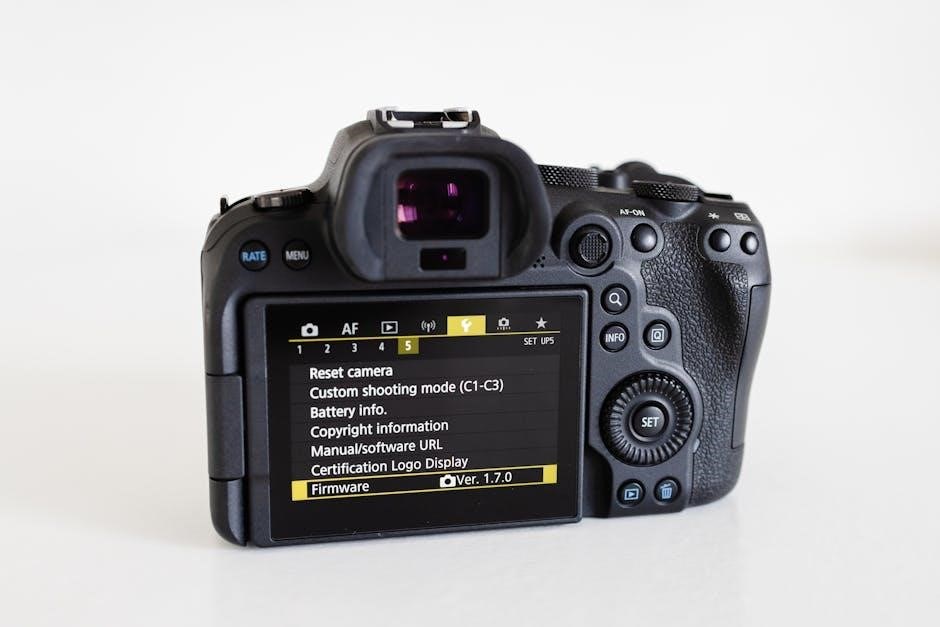
Switch Access failures, app incompatibility, and connection problems are frequent hurdles. Verify settings, check cable integrity, and ensure software updates for optimal manual toggle function.
Switch Access Not Responding
If your Switch Access isn’t responding, several troubleshooting steps can be taken. First, confirm that Switch Access is still enabled within your Android device’s accessibility settings. Navigate to Settings > Accessibility > Switch Access and ensure the toggle is activated.
Next, verify the physical connection of your manual toggle switch. If using a hardware switch, check the cable connection to your Android device. Try a different USB port or cable to rule out connectivity issues. Ensure the switch itself is functioning correctly – test it with another device if possible.
Within Switch Access settings, review your assigned actions. Confirm that the correct actions are mapped to your switch for camera control. Sometimes, a misconfigured assignment can prevent proper functionality. Restarting your Android device can also resolve temporary software glitches that might be interfering with Switch Access. Finally, ensure your Android version is up to date, as older versions may have compatibility issues.
Camera App Compatibility
Not all Android camera applications seamlessly integrate with Switch Access and manual toggle switches. While many standard camera apps should function, some may exhibit limited or no compatibility. The Open Camera app is frequently recommended due to its extensive customization options and reported success with accessibility features.
If you encounter issues with a specific camera app, check for updates, as developers often address compatibility concerns in newer versions. Experimenting with different camera apps is crucial to find one that reliably responds to Switch Access commands. Consider apps designed with accessibility in mind, or those offering robust manual control options.
Furthermore, certain camera features within an app might not be controllable via Switch Access. Thorough testing is recommended to identify which functions are accessible and which are not. User forums and online communities can provide valuable insights into app compatibility experiences.
Hardware Switch Connection Problems
Establishing a reliable connection between your hardware toggle switch and your Android device is paramount for successful operation. Common issues include incorrect wiring, faulty cables, or incompatible switch types. Ensure your switch is properly wired according to the manufacturer’s instructions and compatible with your device’s input method – typically a 3.5mm jack or USB adapter.
If the switch isn’t recognized, verify the adapter (if used) is functioning correctly with other devices. Test different cables to rule out a faulty connection. Check Android’s accessibility settings to confirm Switch Access is enabled and correctly configured to recognize the external switch.
Interference from other connected devices can sometimes disrupt the signal. Try disconnecting unnecessary peripherals. If problems persist, consult online forums or seek assistance from a technician experienced with accessibility hardware.
Advanced Configurations
Advanced users can leverage Tasker for automated camera switching routines, triggered by the toggle, and customize Switch Access settings for personalized control.
Customizing Switch Access Settings
Switch Access on Android provides a robust suite of customization options to tailor the camera control experience. Within the settings, users can adjust scanning speed, choosing between automatic and manual modes to suit their reaction time and preference.
Furthermore, the ‘Switch Control Menu’ allows for granular control over actions assigned to each switch. You can modify the timing of switch presses – short clicks versus long holds – to differentiate between commands like ‘take photo’ and ‘switch cameras’.
Explore the ‘Actions’ menu to remap existing functions or create entirely new ones. Consider assigning specific gestures to activate features within the Open Camera app, such as toggling flash or adjusting exposure. Experimenting with these settings is crucial to achieving a seamless and intuitive workflow, maximizing the benefits of a manual toggle camera switch.
Using Tasker for Automated Camera Switching
Tasker, a powerful Android automation app, elevates manual toggle camera switch functionality by enabling complex, context-aware camera control. You can create profiles triggered by the switch state – for example, a switch press instantly launching the Open Camera app and switching to the rear camera.
Beyond simple switching, Tasker allows for conditional actions. Imagine a profile that activates night mode when the switch is pressed during low-light conditions, or automatically adjusts ISO based on the time of day. Variables can be utilized to track switch press counts, enabling multi-step camera sequences.
Integrating Tasker requires some technical proficiency, but the potential for customization is immense. Explore online communities and tutorials for pre-built profiles or inspiration to craft a truly personalized camera experience driven by your manual toggle switch;